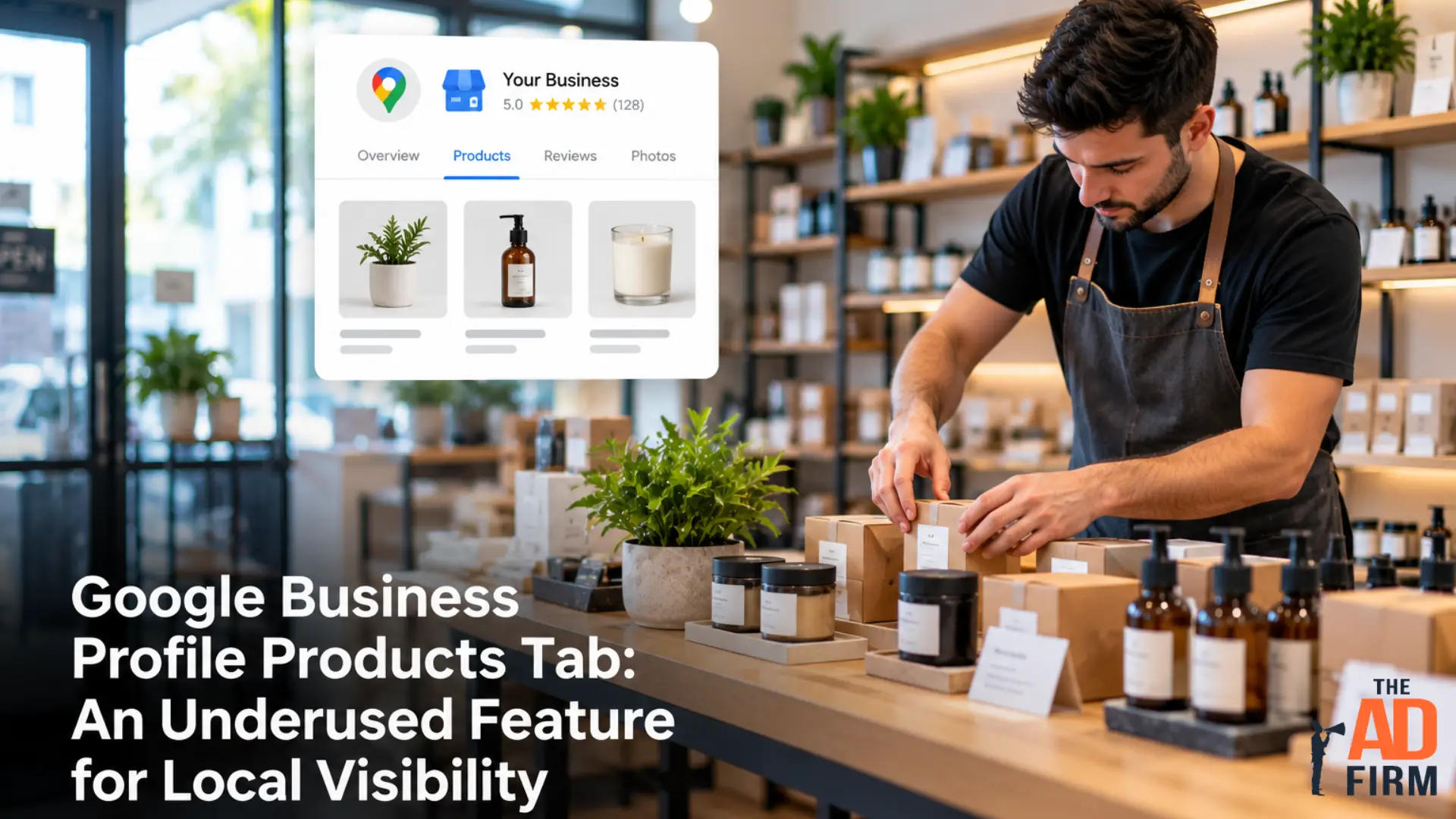
Most businesses fill in their Google Business Profile basics, such as hours, phone number, photos, and categories, then stop there. The Products tab often sits empty, even though it gives you space to show exactly what you sell, right on the profile customers see in Search and Maps.
That empty space is a missed opportunity. A complete Products section helps searchers understand your offerings before they ever visit your website, and it gives your profile more substance than competitors who skipped it. For businesses investing in Local SEO, it’s one of the simplest ways to make a Google Business Profile work harder.
What Is the Google Business Profile Products Tab?
The Google Business Profile Products tab is a section of your profile where you can showcase individual products or product categories with photos, descriptions, prices, and links. Customers can browse these items directly from your profile on Google Search and Google Maps, often without clicking through to your website.
Each product entry works like a mini listing. A bakery can feature its custom cakes, a bike shop can display its most popular models, and a hardware store can highlight seasonal items like generators or patio heaters.
The section was designed with retail businesses in mind, but service-based companies use it just as effectively. A digital marketing agency, for example, might list “Local SEO Audit,” “PPC Campaign Setup,” or “Website Redesign” as products, each paired with a branded visual or a screenshot of past results.
The details you add here become part of the information Google holds about your business. A complete, well-structured profile gives Google more to index and surface, which supports broader efforts around Local SEO and strengthens your overall presence in local search results.
Do Google Business Profile Products Help Local SEO?
Google Business Profile products are not considered a direct local ranking factor, but they can improve visibility and engagement in ways that support your local search performance. Whitespark, a local SEO software company, notes in its Google Business Profile guide that products added manually through the Products editor don’t help a profile rank for product searches. That ranking benefit comes through Google Merchant Center instead.
Streamline Your Digital Assets with The Ad Firm
- Web Development: Build and manage high-performing digital platforms that enhance your business operations.
- SEO: Leverage advanced SEO strategies to significantly improve your search engine rankings.
- PPC: Craft and execute PPC campaigns that ensure high engagement and superior ROI.
What products do change is how your profile performs once it appears. A profile with a filled-in Products section takes up more visual space, answers shopper questions faster, and gives people more reasons to click, call, or visit. Those engagement signals matter, and a profile that converts better is worth more at any ranking position.
Products can surface for relevant searches too. When someone searches for a specific item near them, Google may show matching products from nearby businesses, especially for retailers connected to Google Merchant Center.
For online stores with physical locations, the Products tab works best alongside a broader Ecommerce SEO strategy that keeps product pages, categories, and structured data aligned across your website and Google listings.
How Do You Add Products to Your Google Business Profile?
You add products to your Google Business Profile by selecting Edit products from your profile on Google Search or Maps, then filling in each item’s details and publishing it. The process takes only a few minutes per product.
- Sign in to the Google Account that manages your Business Profile.
- Search for your business name on Google, or open your profile in Google Maps.
- Select Edit products from your profile management options.
- Click Add product and upload a clear product photo.
- Enter the product name (up to 58 characters) and choose or create a product category.
- Add a price or price range, if you want one displayed.
- Write a description of up to 1,000 characters.
- Add a button and link, such as “Learn more” or “Order online,” that points to the product’s page on your website.
- Click Publish.
Google reviews new products before they go live, so they may take a short time to appear.
The link in step 8 deserves extra attention. Sending profile visitors to your homepage forces them to search for the item again. Linking each product to a dedicated, mobile-friendly landing page keeps the path short, and strong Web Design makes those pages easy to act on.
Why Can’t I Add Products to My Google Business Profile?
You may not be able to add products to your Google Business Profile if your primary business category isn’t eligible, your profile isn’t verified, or your inventory is managed through Google Merchant Center. Each issue has a different fix.
Transform Your Online Strategy with The Ad Firm
- SEO: Achieve top search rankings and outpace your competitors with our expert SEO techniques.
- Paid Ads: Leverage cutting-edge ad strategies to maximize return on investment and increase conversions.
- Digital PR: Manage your brand’s reputation and enhance public perception with our tailored digital PR services.
- Ineligible categories. Google restricts the Products feature for certain business types, including hotels and businesses tied to alcohol, firearms, cannabis, gambling, and adult entertainment.
- Unverified profiles. Many editing features stay limited until Google verifies the business.
- Merchant Center connections. Retailers that sync inventory through Merchant Center or a point-of-sale tool may see their products in a “See what’s in store” section instead of the standard Products editor. Your products are still showing in that case. They appear as local inventory pulled from your Merchant Center feed, so updates happen in the Merchant Center or your point-of-sale system rather than in the Business Profile editor.
- Category mismatch. If competitors in your industry show products and you don’t, review your primary category. A small change can sometimes restore access.
For retailers, a Merchant Center connection is usually worth the trade. Synced inventory keeps prices and stock levels current automatically, and the same product feed can power Product Listing Ads that put your items at the top of shopping results.
Read More: Bing Places for Business: Is It Worth Setting Up in 2026?
How to Get More From the Products Tab
Adding a few products is a start. Keeping the section useful and current is what makes it pay off.
Organize Products Into Categories
Every product you add has to be assigned to a category, and you can create your own. Grouping items into clear categories, such as “Wedding Cakes,” “Cupcakes,” and “Seasonal Treats” for a bakery, makes the section easier to browse and helps customers find the right item quickly. Keep category names short and use the same words your customers would search for.
Feature Your Best Sellers and Highest-Margin Items
You don’t need to list your entire catalog. Focus on the items or packages that bring in the most revenue or that customers ask about most often. Businesses with large inventories can list product categories instead of individual items.
Write Descriptions for Customers, Not Algorithms
Use the description to answer the questions shoppers ask before buying: what the product does, who it’s for, sizes or options, and what sets it apart. Natural, specific language works better than a list of keywords. A consistent Content Marketing approach keeps these descriptions aligned with the messaging on your website and social channels.
Maximize Your Online Impact with The Ad Firm
- Local SEO: Capture the local market with strategic SEO techniques that drive foot traffic and online sales.
- Digital PR: Boost your brand’s image with strategic digital PR that connects and resonates with your audience.
- PPC: Implement targeted PPC campaigns that effectively convert interest into action.
Use Real Photos
Original photos of your actual products look more trustworthy than stock images. Shoot in good lighting, keep backgrounds clean, and show the item at a size customers can recognize on a phone screen.
Rotate Products by Season
Update the section as demand shifts. A garden center might feature seed starter kits in early spring and holiday wreaths in December. Fresh products signal an active business and match what people are searching for right now.
Track What Happens After the Click
Add UTM parameters to your product links so you can see in Google Analytics which items drive website visits and sales. If profile traffic lands on a page but doesn’t convert, Conversion Rate Optimization can identify what’s holding visitors back.
Learn More: Local SEO Checklist for New Businesses
Turn Your Google Business Profile Into a Local Storefront
Your Google Business Profile is often the first place customers meet your business. An empty Products tab is a missed chance to make that first impression count.
The Ad Firm helps businesses build complete, high-performing Google Business Profiles as part of a full local search strategy, from product listings and photos to the website pages that turn profile visits into sales.
Contact The Ad Firm to see how your Google Business Profile compares to your competitors and what to improve first.
Frequently Asked Questions About the Google Business Profile Products Tab
Is there a cost to add products to a Google Business Profile?
No. Adding products manually through your Business Profile costs nothing. Paid options, such as Shopping ads, are separate from the standard Products section.
How many products can I add?
Google doesn’t publish a strict product limit for the Products section. Most businesses get the best results by featuring a focused selection rather than uploading every item they carry.
What’s the difference between the Products and Services sections?
The Services section lists what your business does, usually as text with optional descriptions and prices. The Products section is more visual, with a photo, button, and link for each item, which makes it better suited for featured offerings.
Do products expire from a Google Business Profile?
Products manually added to a Business Profile don’t have a set expiration date, but outdated prices or discontinued items can frustrate customers. Review the section regularly and remove anything you no longer sell.
Boost Your Business Growth with The Ad Firm
- PPC: Optimize your ad spends with our tailored PPC campaigns that promise higher conversions.
- Web Development: Develop a robust, scalable website optimized for user experience and conversions.
- Email Marketing: Engage your audience with personalized email marketing strategies designed for maximum impact.
Can I edit or delete a product after publishing it?
Yes. Open the Products editor from your profile, select the item, and update its details or delete it. Changes may take a short time to appear publicly.