ChatGPT now has business profiles, managed through a section called Business Hub. To claim yours, you search for your business, pick your listing, prove you’re connected to it, and then pass an ID check with a company called Persona. Claiming it is a basic step in AI SEO. If you’ve claimed a Google Business Profile before, the idea will feel familiar. The screens are different, though, and two of them can stop you cold if you don’t see them coming.
Everything below comes from our own setup on November 19, 2026, checked against OpenAI’s own setup guide. We blurred personal details in the screenshots, like the account email, our face scan and our tax ID number.
Can Every Business Claim a ChatGPT Business Profile?
Most can claim one. Fewer can create one from scratch. Here’s where things stand right now, per OpenAI’s eligibility rules.
- Claiming an existing listing is open to anyone who owns the business or is authorized to represent it. You don’t need an Ads account or a paid ChatGPT plan.
- Creating a new profile is open to eligible online businesses. Local stores and restaurants can currently claim only an existing U.S. listing.
- Business agents, the chat assistant ChatGPT can run for you, are only for eligible U.S. ecommerce and online service businesses with a website.
So for a local business, the first thing to find out is whether ChatGPT already has a listing for you. That decides which path below you’re on.
What Do You Need Before You Start?
Get these together first. The process stalls fast if you have to stop halfway and hunt for one of them.
- A ChatGPT account you’re logged in to. The claim is tied to this account, and it becomes the admin for the profile.
- One way to prove your connection to the business. That’s the phone number or email on the listing, access to your domain’s DNS settings, or your Shopify store login.
- A government-issued photo ID.
- A phone with a camera, for the ID photo and the face scan.
- Your legal business name, and your DBA name if you use one.
- Your business registration number. In the US, that’s your EIN.
- Your physical business address. PO boxes are not accepted.
How Do You Claim an Existing Business in ChatGPT?
Step 1. Search for Your Business in Business Hub
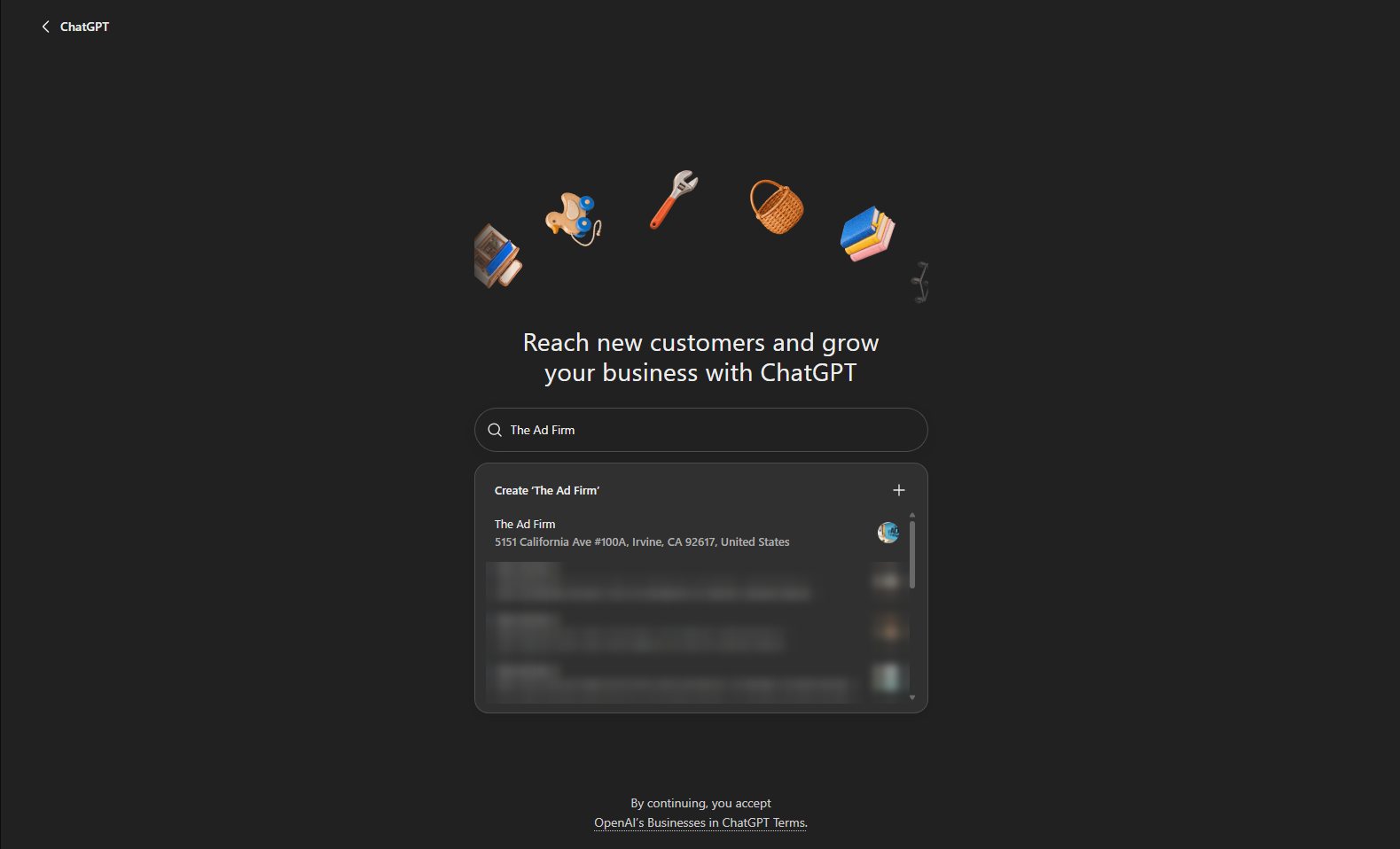
Go to chatgpt.com/business-hub, or open Business Hub from the ChatGPT sidebar. Type your business name into the search bar. ChatGPT lists every match it already knows about, with the address under each one. Pick the listing at your address.
Look closely if your name is common. Our search for The Ad Firm returned four businesses with the same name in different cities, and only one was us. If yours isn’t in the list at all, skip down to the section on businesses that aren’t listed.
Step 2. Claim the Listing With Your Current Account
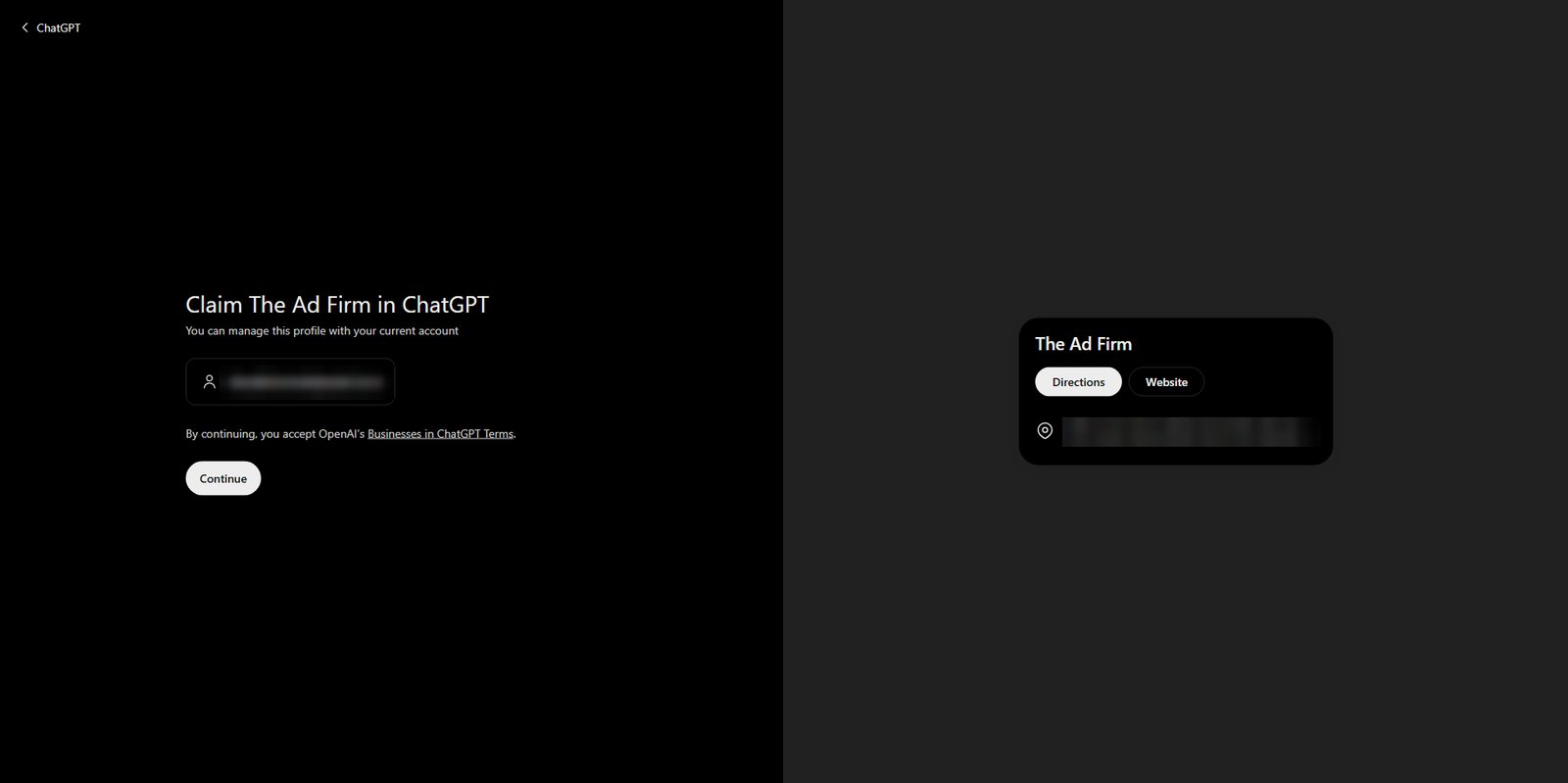
Selecting your listing opens a “Claim in ChatGPT” screen, with your listing card on the right. It shows the email of the account you’re logged in to. That account will manage the profile, so make sure it’s the right one before you press Continue. Continuing also means you accept OpenAI’s Businesses in ChatGPT Terms.
Agencies, take note. OpenAI says the admin who claims a business can later add teammates and give an agency access, and that each person should use their own ChatGPT account. In practice that means the owner or someone authorized at the business should run this claim. Then they can invite you.
Step 3. Choose How to Verify Your Claim
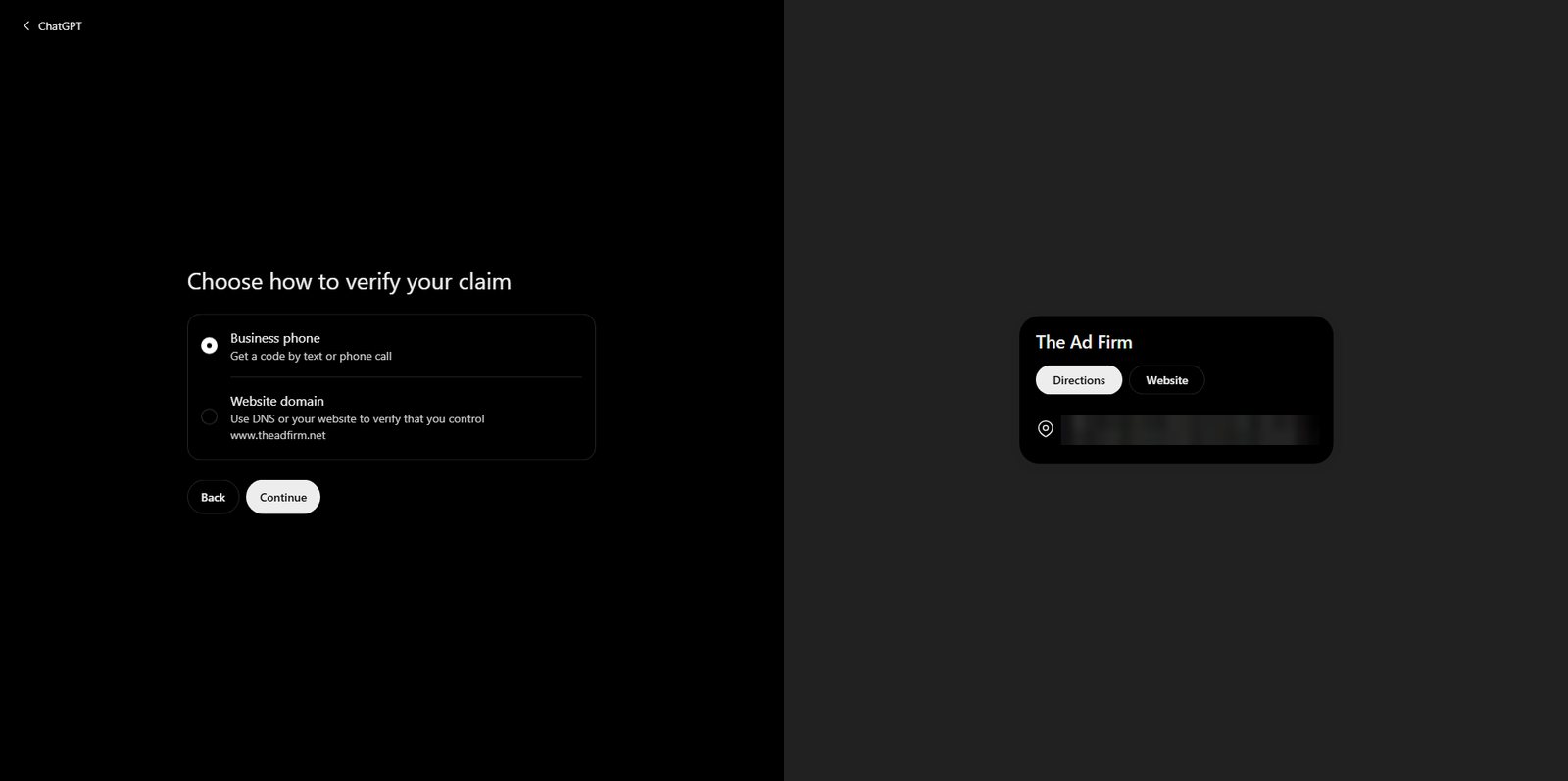
Next, ChatGPT asks you to prove your connection to the business. It only shows the methods that work for your listing. Ours offered two, but OpenAI lists four verification methods in total.
- Business phone. Pick a text or an automated call, press Get code, and enter the code sent to the number on the listing.
- Business email. Press Get code and enter the code sent to the email address tied to the business.
- Website domain. Add a TXT record to your domain’s DNS settings, then press Verify domain.
- Shopify store. Connect Shopify, log in to the store for the business, and approve the connection.
Use the phone option if the listed number rings straight to you. If it goes to a call center, an answering service or a tracking number, use the domain option. It doesn’t touch your public phone number. We went with DNS.
Step 4. Copy the TXT Record ChatGPT Gives You
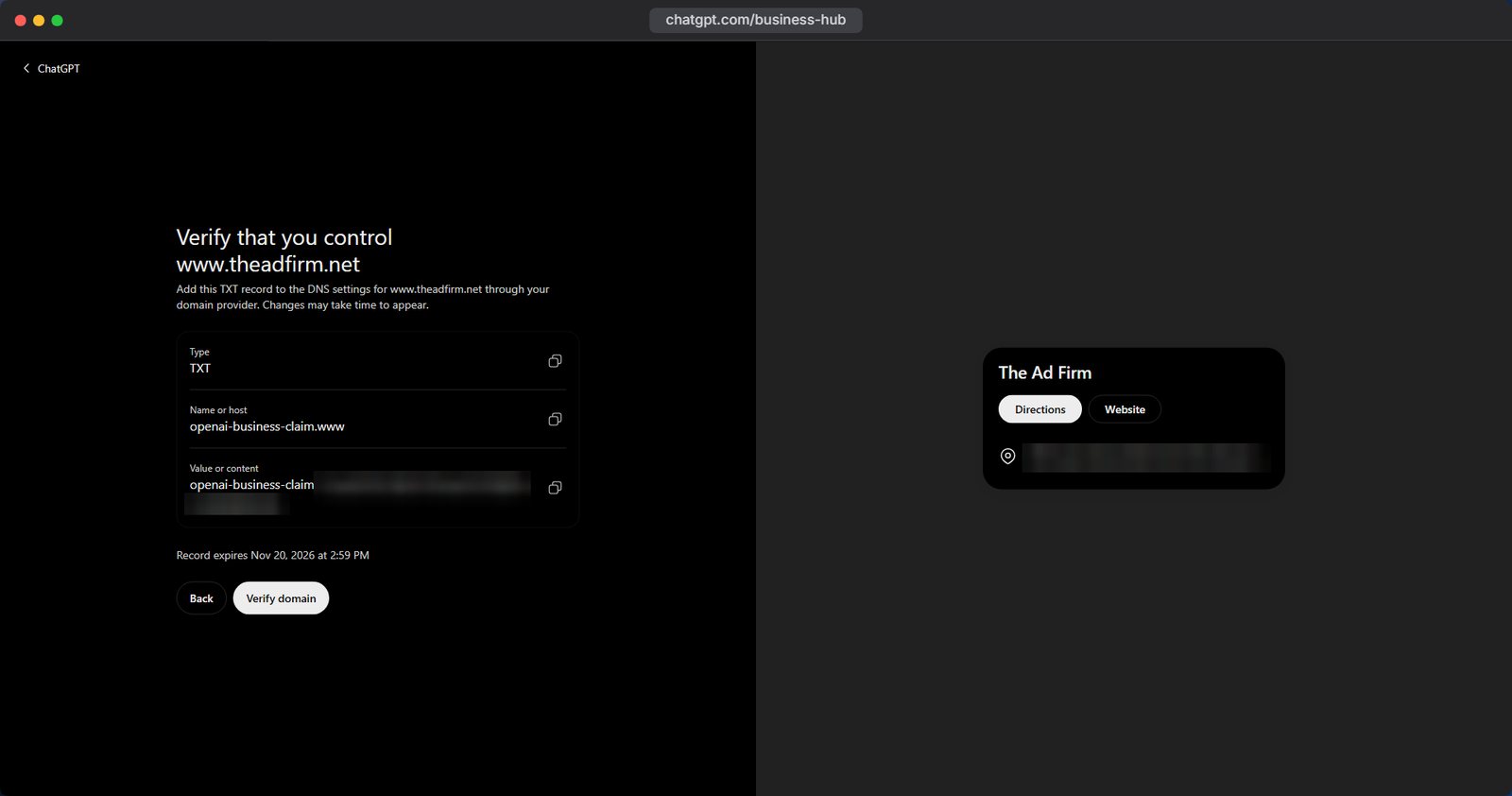
Choosing the domain option brings up a TXT record with three parts.
- Type is
TXT. - Name or host was
openai-business-claim.wwwfor our site on www. - Value or content starts with
openai-business-claim=and ends with a code that’s unique to your claim.
Each field has a copy button. Use it rather than typing the value by hand, because one wrong character fails the check. Note the expiry time under the record too. Ours ran out about a day later, so add it right away. If someone else manages your domain, send them all three values.
Step 5. Add the Record at Your DNS Provider
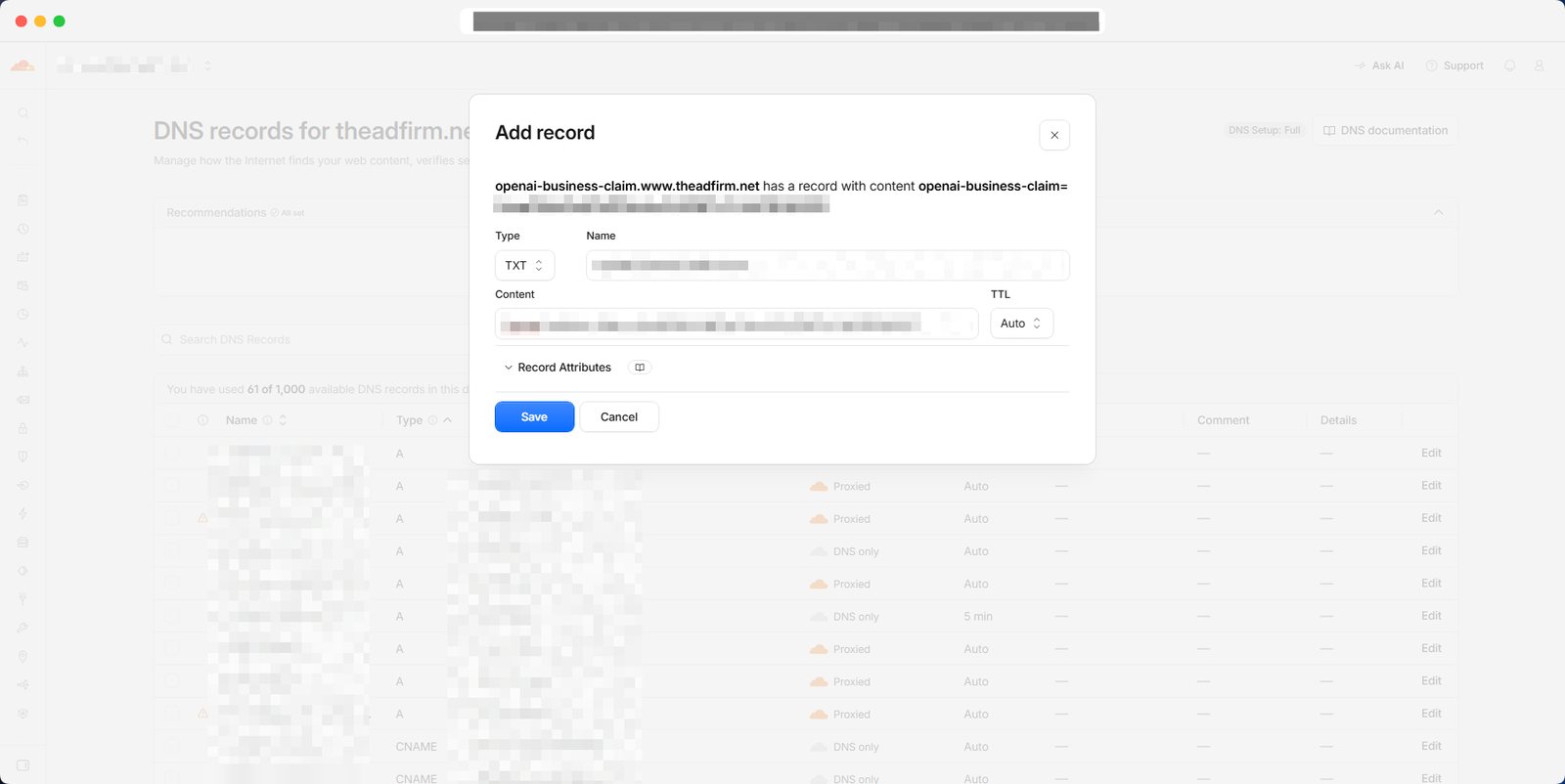
Open the DNS settings wherever your domain is managed. Ours is on Cloudflare. Add a new record, set the type to TXT, and paste in the name and the content. Leave TTL on Auto and save.
Some providers add your domain to the end of the name for you, so openai-business-claim.www becomes openai-business-claim.www.yourdomain.com. Cloudflare showed the full version as a preview above the form, which is a handy way to check it before saving.
Step 6. Go Back to ChatGPT and Verify the Domain
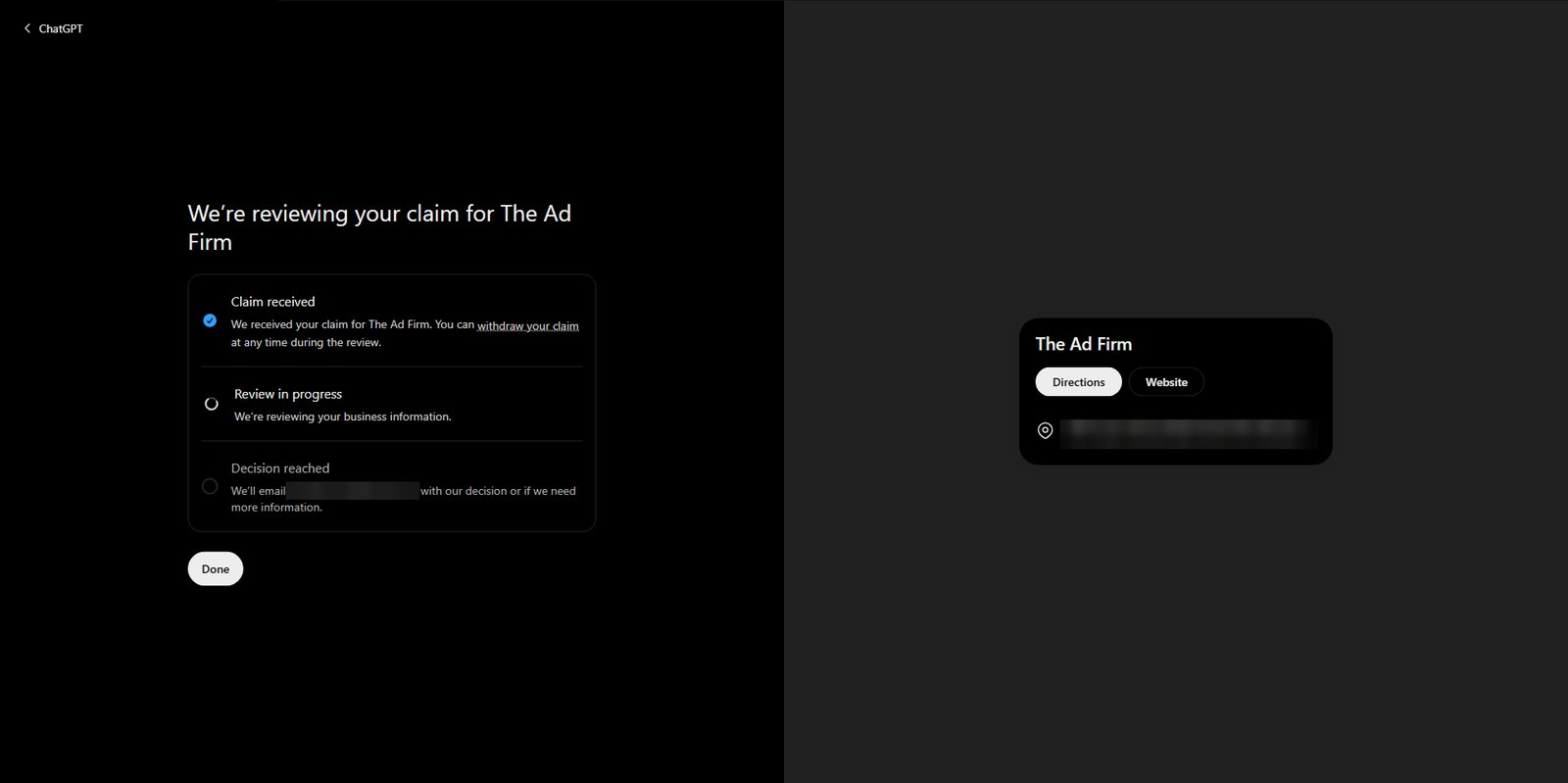
Back in ChatGPT, press Verify domain. If it fails right after you save, give it a few minutes and try again, since DNS changes can take a while to show up. Once it finds the record, you land on a tracker with three stages. Claim received, review in progress, and decision reached.
OpenAI reviews the claim and emails the account address with its decision, or with a request for more information. You can withdraw the claim at any point during the review.
What If Your Business Isn’t Listed in ChatGPT?
This is the first place people get stuck. If your search comes up empty, the list shows a Create option at the top. Selecting it asks one question first. How do customers usually interact with your business?
- At a physical location means customers visit a store, restaurant, office or other location.
- Through a website means customers buy from your website or a marketplace.
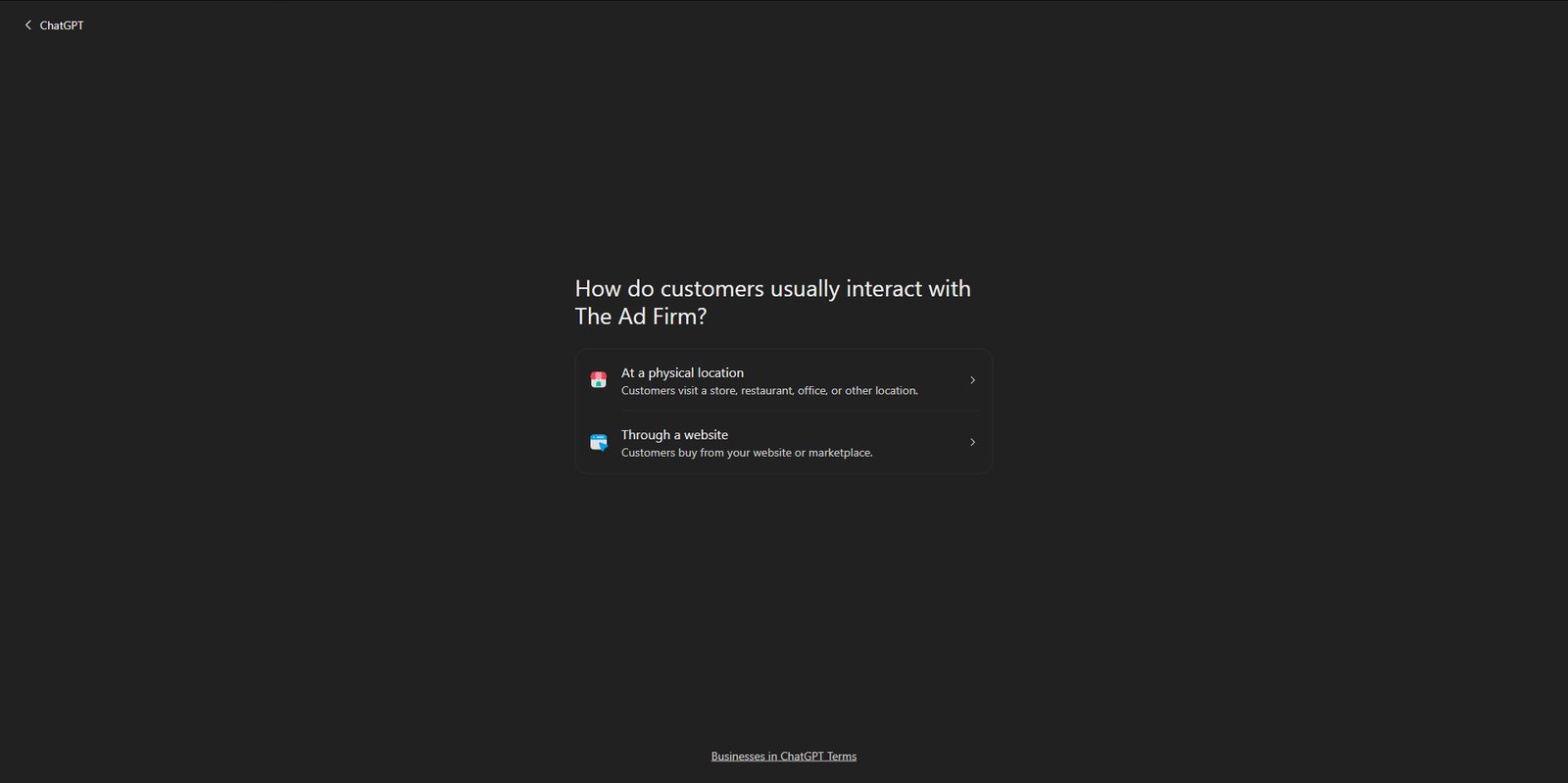
When we tested the Create path with the physical location option, ChatGPT didn’t let us build a profile. It showed a waitlist screen instead, saying it’s opening access to more businesses gradually and will email you when you can continue. That lines up with OpenAI’s note that local stores and restaurants can only claim an existing U.S. listing for now.
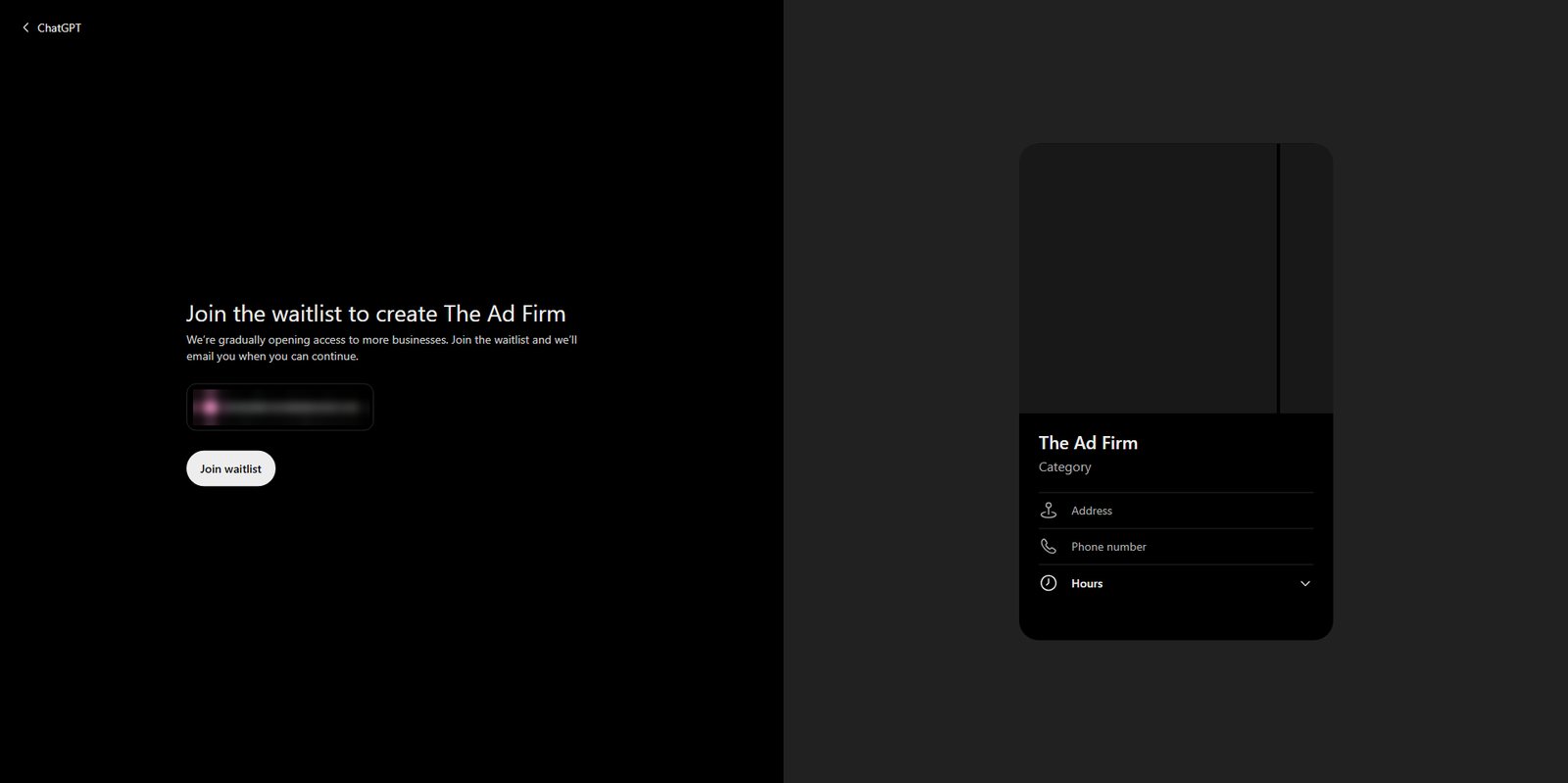
A few things to try before joining the waitlist.
- Search again. Try your full address, an older business name or a slightly different spelling. Claiming a listing that already existed got us straight through.
- Pick the honest option. Don’t choose “Through a website” just to get around the waitlist if customers actually come to a physical location. Choose what matches how the business works.
- If you’re an online business, the website option may let you add the profile. You’ll verify your domain and fill in your business details, then go through the same Persona check covered below.
Read this before you create a new profile. OpenAI says that when you use Persona to create a new profile, its approval publishes the profile automatically. There’s no separate publish step. Only unpublished drafts can be deleted, and OpenAI Support can’t unpublish or hide a published profile. Double-check every detail before you submit.
Two other situations come up. If someone else has already claimed your business, open its profile, select the three-dot menu and choose Dispute ownership. If your listing shows Contact support, it’s locked, and OpenAI Support has to help with access.
How Does the ChatGPT Persona Identity Check Work?
This is the second place people get stuck. Once your claim is approved, you can open your business dashboard. But a banner at the top asks you to verify your identity with a government-issued ID. Until Persona approves you, you can’t publish changes, view insights, connect a product feed or set up a business agent. This is also the step that earns the blue verified check on your profile.
Step 7. Open Your Business Dashboard and Press Verify
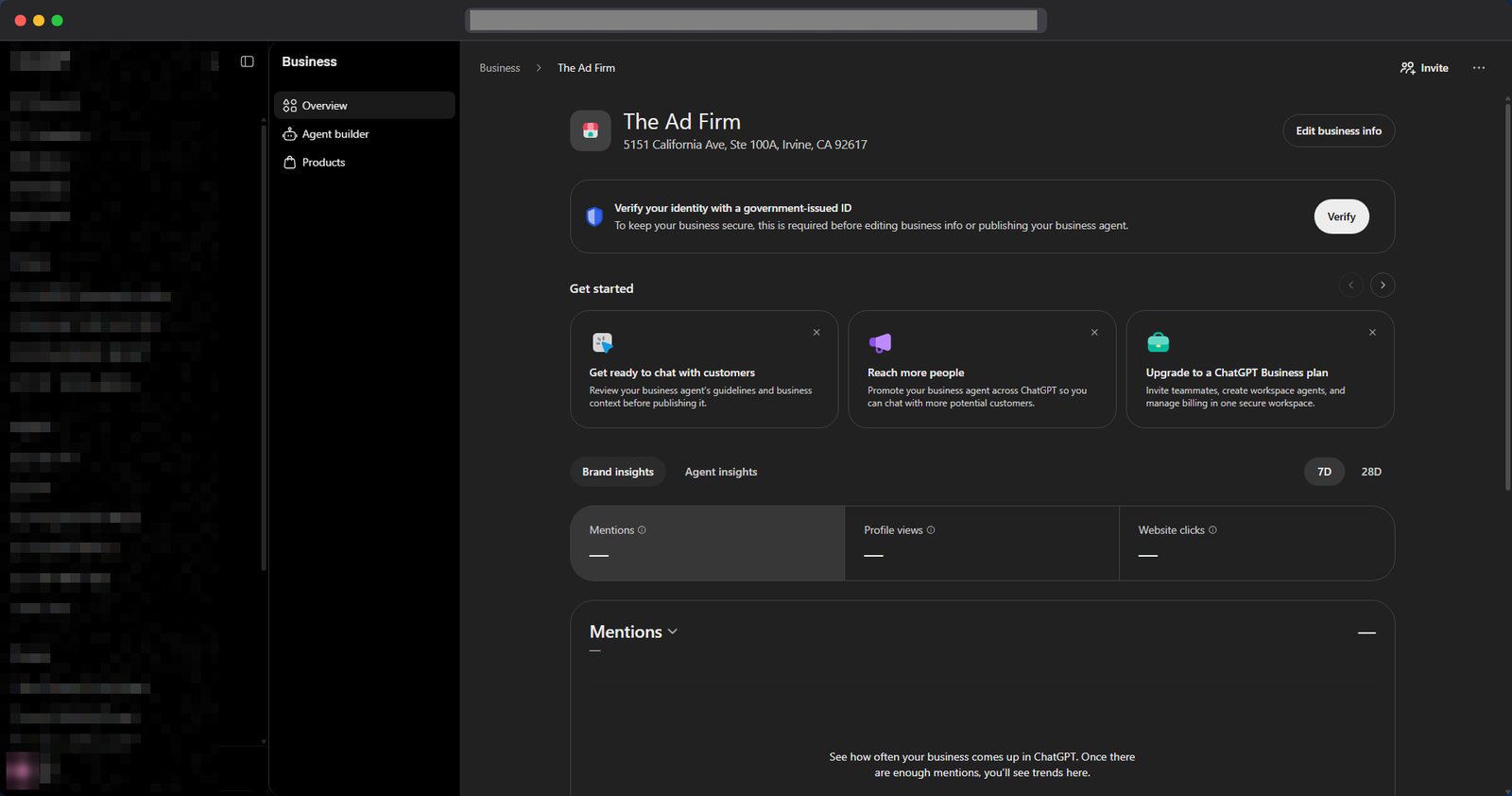
Don’t be alarmed if your Brand insights are empty, it may take ChatGPT some time to start showing some insights. For us after claiming it took a few hours and then we saw insights. On another profile we saw it immediately.
Step 8. Start Verification
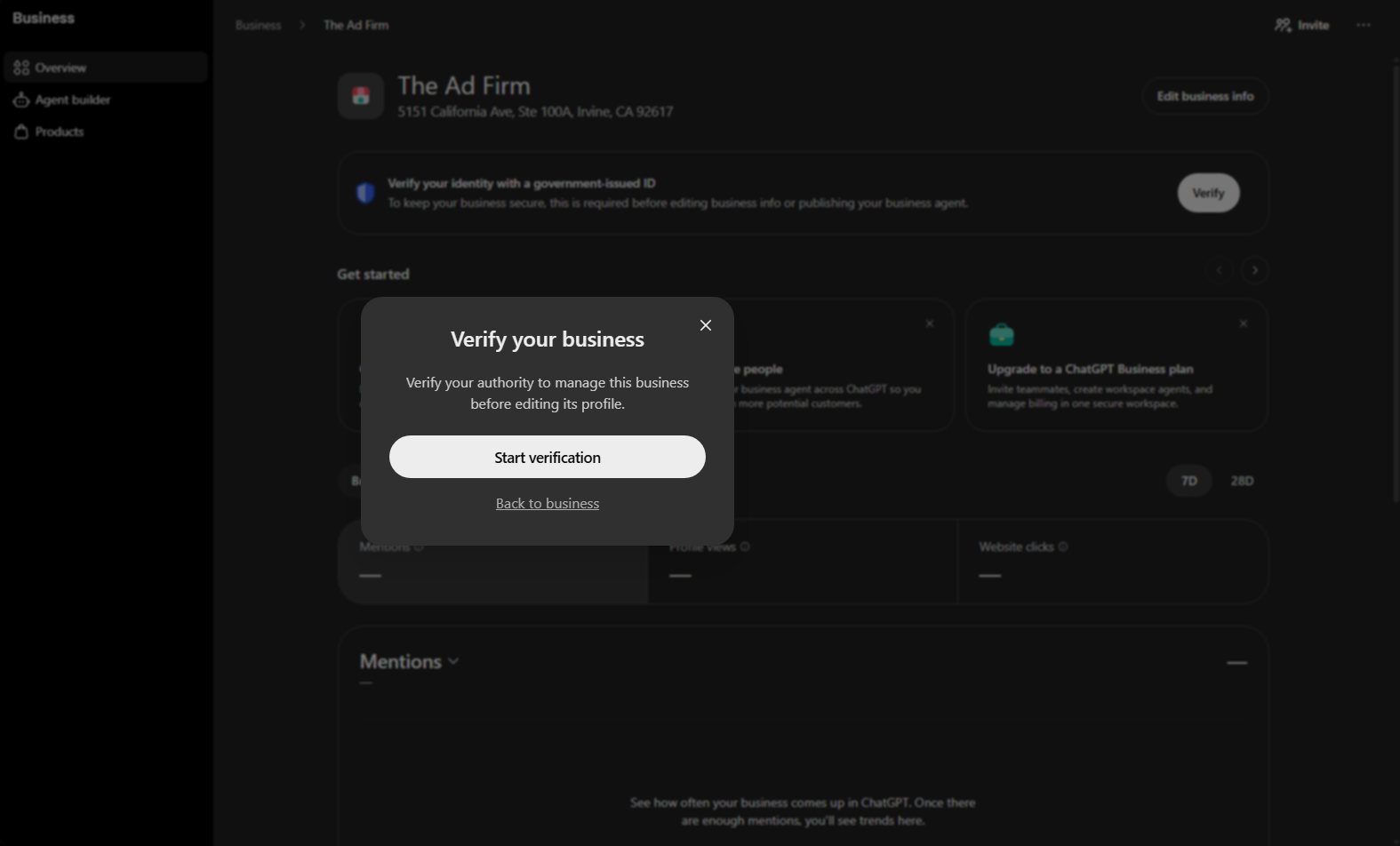
A “Verify your business” window explains that you need to prove you have the authority to manage the business before editing its profile. Press Start verification.
Step 9. Read the Consent Screen and Begin
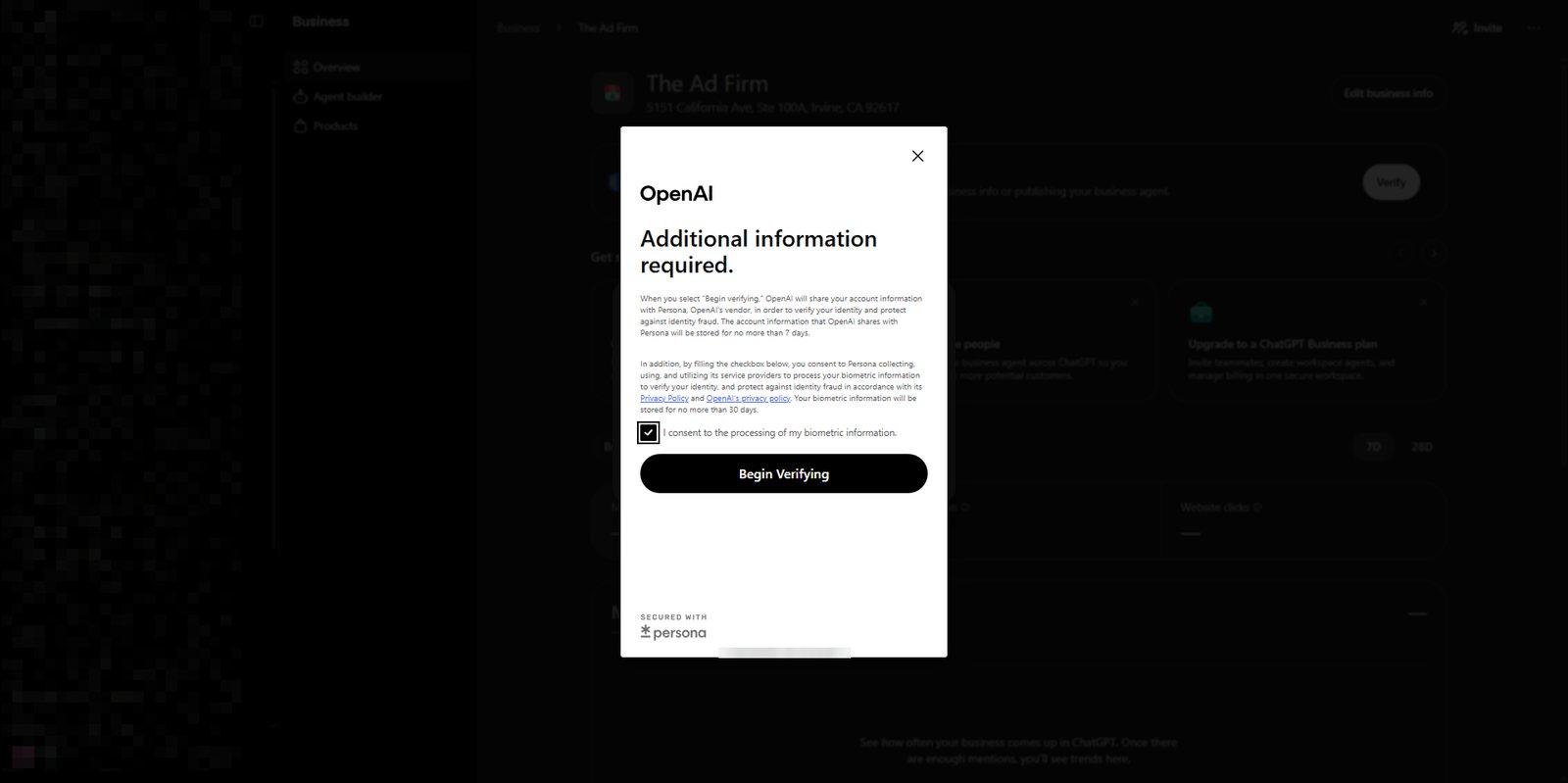
The consent screen says OpenAI shares your account information with Persona to check your identity and protect against fraud. It also says Persona keeps that account information for no more than 7 days, and your biometric information for no more than 30 days. Tick the consent box and press Begin Verifying.
Step 10. Photograph Your Government ID
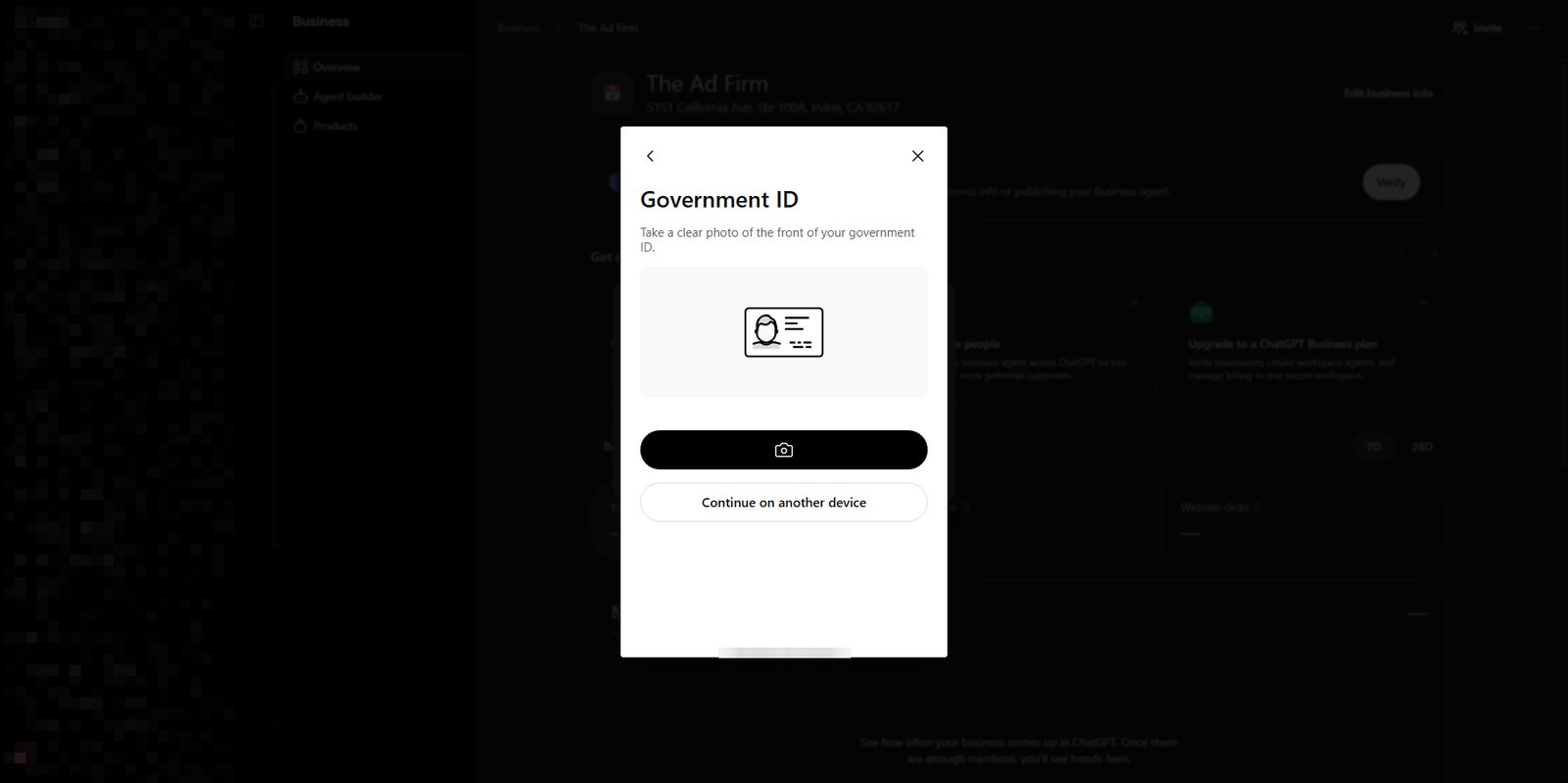
Persona asks for a clear photo of the front of your ID. On a desktop without a good webcam, press Continue on another device and finish on your phone. That’s what we did, so the next few screens are from a phone.
Step 11. Get Ready for the Face Scan
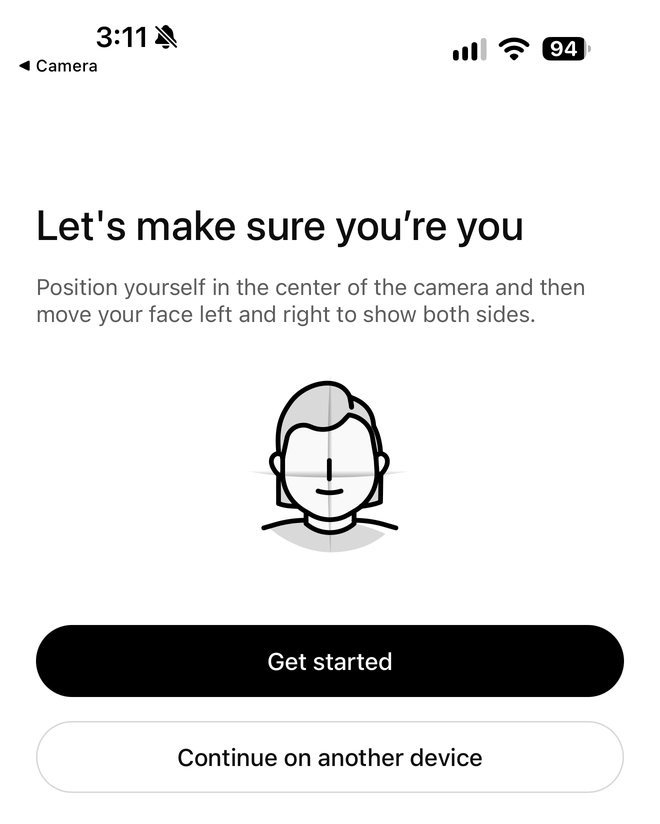
Next comes a short selfie check. Persona asks you to sit in the center of the frame and turn your face left and right so it can see both sides. Find even light before you press Get started.
Step 12. Turn Your Head Until It Says Success
Follow the ring on screen as you turn. It fills in as you go, and a Success label appears when it’s done.
Step 13. Enter Your Legal Name and Business Type
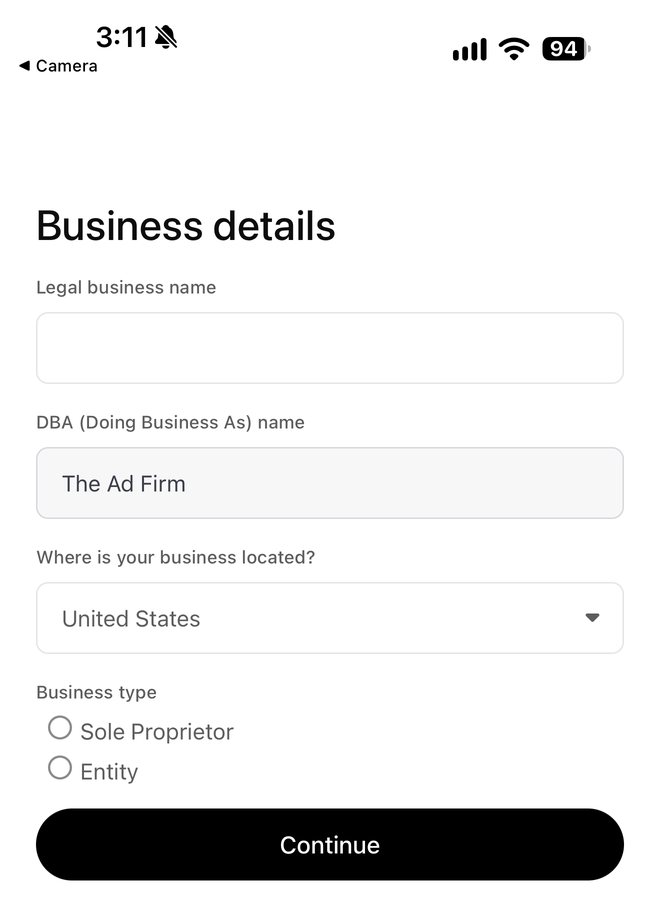
After the face scan, Persona asks about the business itself. Enter your legal business name, your DBA name if you have one, the country, and your business type. The choices are Sole Proprietor and Entity.
The legal name trips people up. OpenAI’s own example is a shop called River Street Coffee that’s registered as River Street Foods LLC. The legal name field gets the registered name, and the DBA field gets the name customers know.
Step 14. Add Your Registration Number and Address
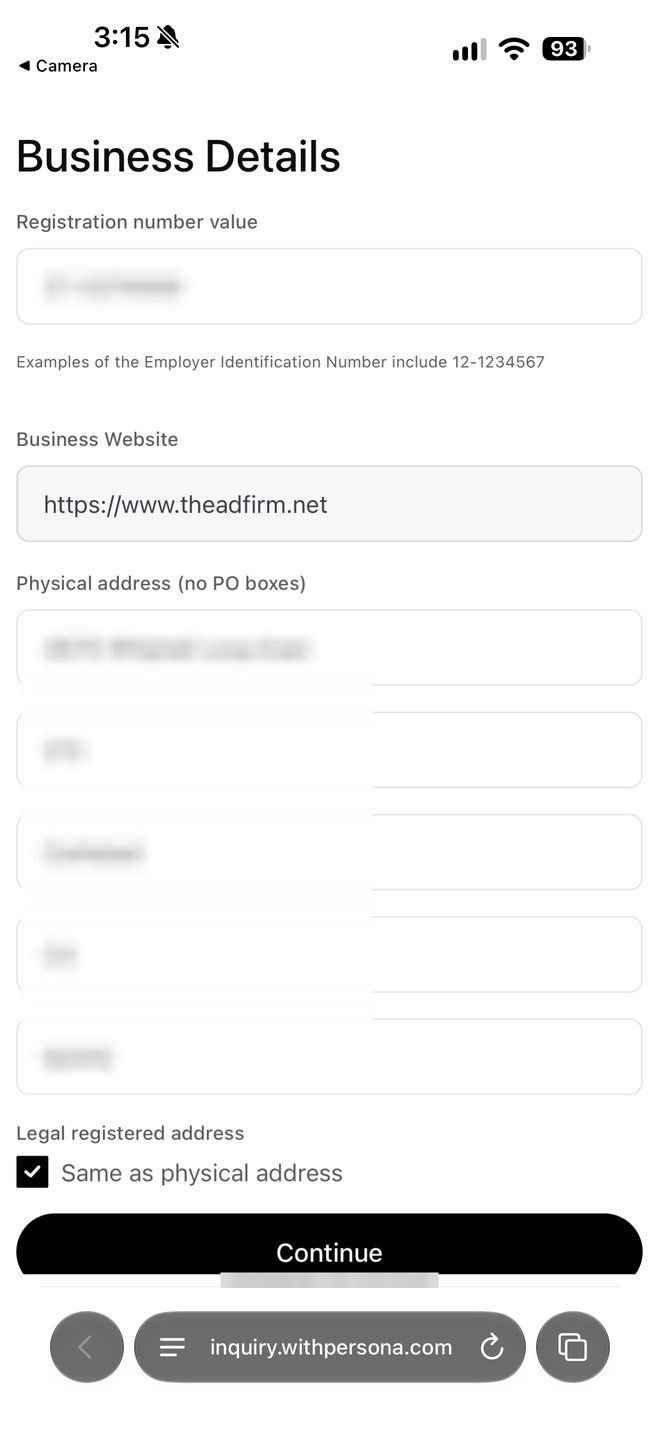
The last form asks for your registration number, your website and your physical address. In the US the registration number is your EIN, written like 12-1234567. The address can’t be a PO box. If your legal registered address is the same as your physical one, tick the box. Make sure the name, address and number all match your official records. That’s the first thing OpenAI tells you to check when a verification fails.
How Long Does ChatGPT Business Verification Take?
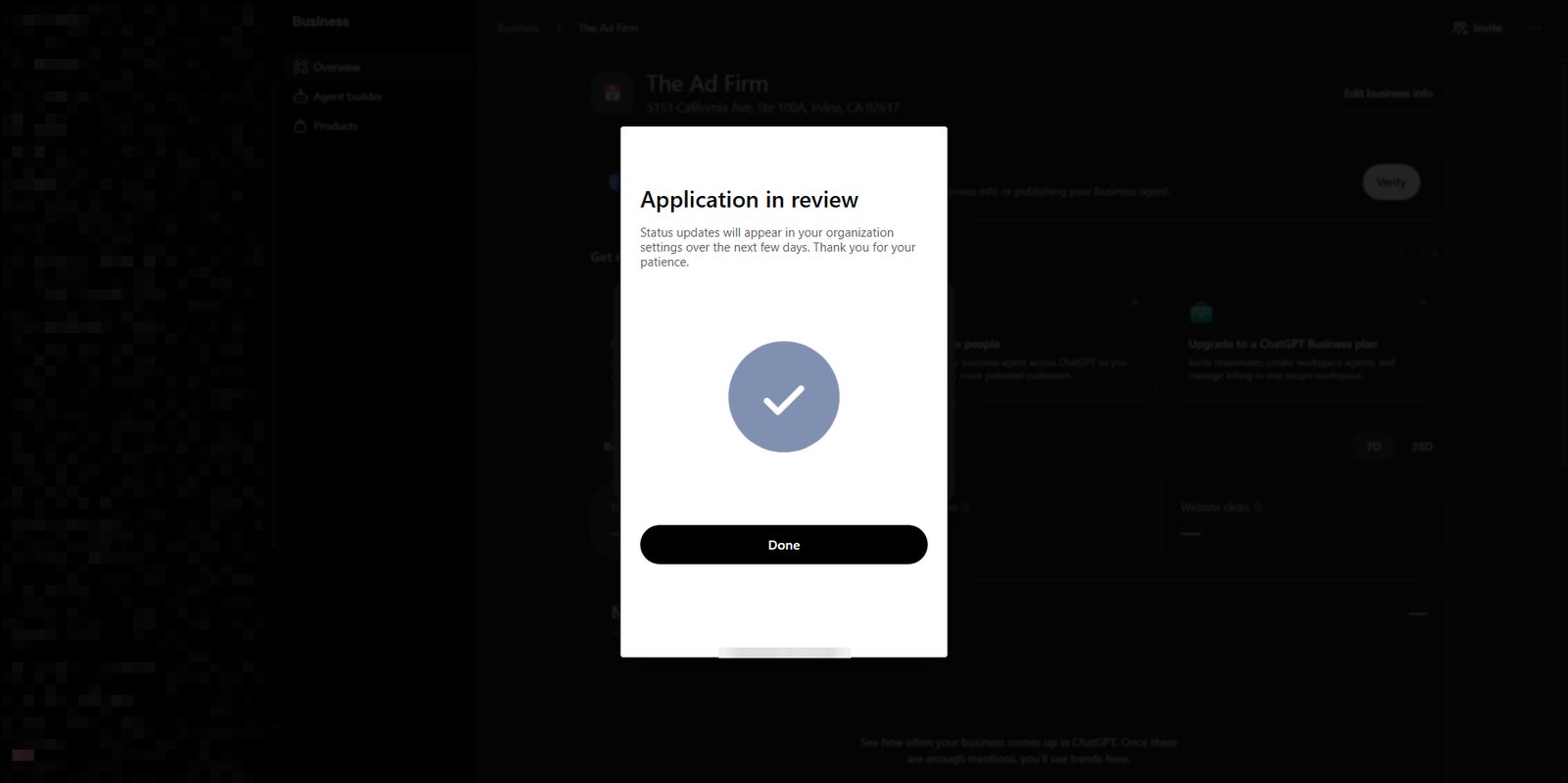
Once you submit, you get an “Application in review” message. Ours said status updates would appear in our organization settings over the next few days. OpenAI says review time varies, and it emails you the decision or a request for more information.
Don’t resubmit while it’s pending. If the check fails or expires, follow the instructions in the email. When a Try again option shows up, use it to send corrected details.
What Can You Manage Once Your ChatGPT Profile Is Verified?
After both the claim and the Persona check are approved, here’s what Business Hub lets you do.
- Edit your business info. Website, description, category, logo, cover photo, and delivery and return policies. OpenAI reviews changes before they go live, so they can take time to show up.
- Connect a product feed. Share products, prices and availability, including from Shopify.
- Read your insights. Mentions, website clicks and discovery topics over the past 28 days.
- Add teammates or an agency. The admin who claimed the business can invite them.
- Set up a business agent. Only if you’re an eligible U.S. ecommerce or online service business.
The mentions number is the one we’ll watch most, and it counts differently by business type. For a local business, a mention counts when ChatGPT shows a result for that location, even if nobody opens the listing. For an online business, it only counts when ChatGPT references the website, not just the brand name. A blank number doesn’t mean zero, either. It can mean activity hasn’t reached the reporting threshold yet. For a wider view across other AI tools, here’s how to monitor if AI engines are citing your brand.
One last thing to keep expectations straight. OpenAI says claiming your profile doesn’t guarantee more visibility in ChatGPT’s answers, and ads don’t influence them. What it does give you is control over the facts ChatGPT has about your business, and a first look at how often it brings you up.
Want Help Getting Your Business Set Up in ChatGPT?
The Ad Firm helps businesses show up where customers search, from Google to AI answers. If you have questions about claiming your ChatGPT profile, get in touch with our team.
Frequently Asked Questions
Do you need to pay or advertise to claim your business in ChatGPT?
No. OpenAI says you don’t need an Ads account or a ChatGPT Enterprise agreement to claim an eligible business. Claiming your profile, publishing a business agent and advertising are all separate. Once your claim and Persona check are approved, you can manage your business info and see insights without running ads.
Will claiming my business make ChatGPT recommend it more often?
Not directly. OpenAI says claiming lets you manage the information you provide, but it doesn’t guarantee more visibility or give you control over ChatGPT’s independent recommendations. Advertising doesn’t influence those answers either. What claiming does give you is accurate facts about your business and insight into how often it gets mentioned.
Can an agency claim a ChatGPT business profile for a client?
The claim should come from the business owner or someone authorized to represent the business. The admin who claims it can then add teammates and give an agency access in Business Hub, with each person using their own ChatGPT account. OpenAI also says not to forward a personal claim invitation to give someone else access.
What if someone else already claimed my business in ChatGPT?
Open the business profile, select the three-dot menu, then select Dispute ownership. You’ll be asked to verify with Persona that you’re authorized to represent the business. Disputing ownership doesn’t change how visible the profile is in ChatGPT.
How long does ChatGPT business verification take?
OpenAI says review time varies, and it emails you its decision or a request for more information. Our screen said status updates would show up over the next few days. While a claim or Persona check is pending, wait for the decision rather than submitting again.
Why does my ChatGPT mentions count show blank?
A blank metric doesn’t necessarily mean zero activity. OpenAI says it can mean activity hasn’t reached the reporting threshold yet, data is still being collected, or reporting is unavailable. If it stays blank for a long time, contact OpenAI Support.